TradingView7 min
TradingView Custom Timeframes: Chart Any Interval You Want
TradingView ships with plenty of intervals, but rarely the exact one your strategy wants. Here is how to build, save, and actually use custom timeframes.
VektorAlgo Research
Stop rebuilding the same chart from scratch on every symbol. Here is how to create, apply, and manage TradingView chart templates so your analysis stays consistent.

If you trade more than one symbol, you have felt this. You build a clean chart on gold, get the moving averages colored right, the session lines set, the oscillator tucked into its own pane, and then you flip to Bitcoin and it is a blank canvas again. Rebuilding the same setup by hand, symbol after symbol, is a quiet tax on your time and a fast way to end up with charts that do not match each other.
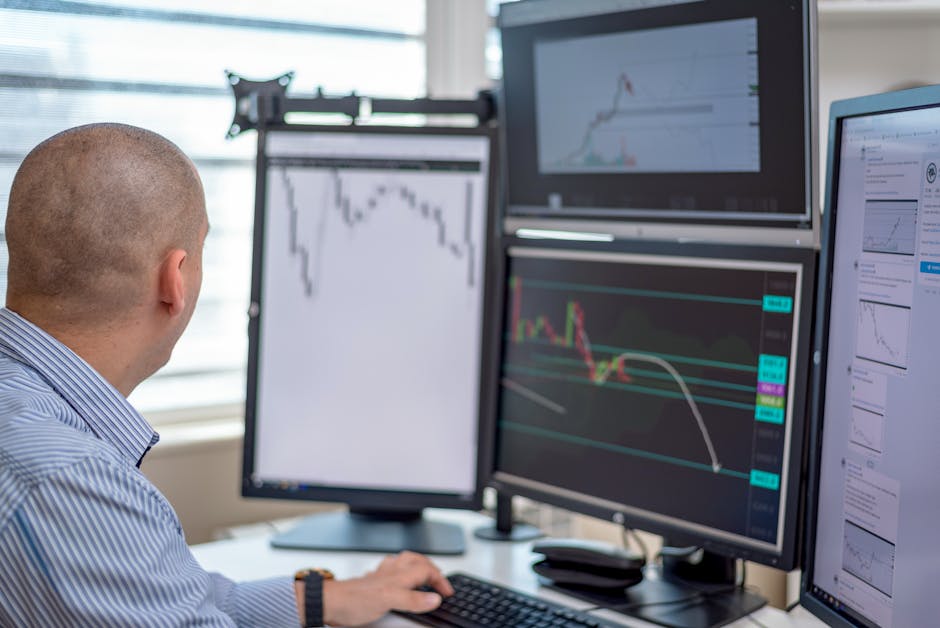
TradingView chart templates fix that. A template captures your indicators, their settings, colors, and styling, then lets you drop the whole package onto any symbol in one click. Build it once, apply it everywhere, and every chart you open speaks the same visual language. This guide covers how to create a template, how to apply and manage them, and the small traps that trip people up.
A template stores the visual brain of your chart. That means every indicator you have added, the exact inputs on each one, the colors and line widths, and the general chart style. When you apply it to a new symbol, TradingView rebuilds that same stack of indicators and formatting on top of the new price data.
Here is what a template does not save, and this is the part people get wrong:
Think of it this way. A template is a coat of paint and a toolset. It is not the house.
This is the distinction worth burning into memory. A template stamps your indicators and styling onto any symbol. A layout saves your entire workspace, including which symbols and timeframes are loaded and every drawing on them, so you can reopen it exactly as you left it. Templates are for consistency across many charts. Layouts are for returning to a specific setup. If you work with several charts side by side, multi-chart layouts and templates solve two different problems, and you will likely use both.
Start by building the chart you actually want to reuse. Do not template a half-finished setup, because you will just be cleaning it up later on every symbol you touch.
Name templates for what they do, not what they contain. "Trend day setup" or "Gold session" tells you when to reach for it. "MA + RSI + 3 lines" makes you read the label every time.
Once a template exists, using it is fast. Open the symbol you want, click the template menu, and select the template by name. TradingView clears the current indicators and applies the saved stack in their place.
A few things to know before you click:
The workflow that pays off is simple. Build a watchlist of the symbols you follow, then walk down it applying the same template to each so they all read identically. If you have not set one up yet, here is how to build a TradingView watchlist to pair with your templates.
If you use one core setup most of the time, make it your default so every new chart opens with it already loaded. Save the template, then set it as the default from the same template menu. From that point on, a fresh chart is not a blank canvas. It is your setup, ready to go.
Keep the default lean. It loads constantly, so it should be your everyday workhorse, not your heaviest specialist template with a dozen indicators. Save the heavy ones for when you deliberately reach for them.
Templates are easy to create, which means it is easy to end up with fifteen of them and no idea what half of them do. A little discipline keeps the list useful.
| Habit | Why it helps |
|---|---|
| Name by purpose | You reach for the right one without opening it to check |
| Keep the total small | Three to five focused templates beat fifteen vague ones |
| Delete stale ones | An old template you never apply is just clutter in the menu |
| Update in place | Change the chart, then overwrite the template so it stays current |
To update a template, apply it, make your changes on the chart, then save over the existing template name rather than creating a new one. That keeps a single source of truth instead of spawning "Setup v2" and "Setup final" copies that drift apart.
If you find yourself wanting different templates for different jobs, that is healthy. A common split is one clean trend-reading template, one busier template for closer analysis, and maybe a stripped-back one for screenshots. What you do not want is ten near-identical templates you cannot tell apart.
The time you save is nice. The consistency is the actual payoff. When every symbol you look at uses the same colors, the same indicator settings, and the same layout, your eye learns to read them fast. A moving average is always the same color. Your oscillator is always in the same spot. You stop re-reading the chart and start reading the market.
That consistency also makes your process repeatable, which matters more than most people admit. If your gold chart and your Bitcoin chart follow the same rules, you are comparing like with like instead of second-guessing whether that line means the same thing it did on the last chart. Pair templates with a tidy set of chart settings and your whole workspace starts working with you instead of against you.
This is also where a well-built indicator earns its keep. Part of what makes a setup worth templating is that its settings behave the same way on every symbol you apply them to, so the template you save actually holds up when you move it around.
Made by Vektor
Built by the team behind Vektor.
We build trend tools for TradingView. The gold and Bitcoin system we run is a straightforward subscription. Cancel anytime.
Templates work on every plan, free included. The one catch is the indicator cap. Free accounts allow fewer indicators per chart, so a heavy template can fail to apply in full if it exceeds the limit. If a template only partially loads, that is almost always why. Trim it down and it applies cleanly. For most trend-reading setups you do not need a crowded chart anyway, and a lean template is faster to apply and easier to read.
Chart templates are one of those small features that quietly upgrade your entire workflow. Build the chart you want once, save it as a template, and then stop rebuilding it. Apply it down your watchlist so every symbol matches, set your everyday setup as the default, and keep the list short and named for purpose. Remember the split: templates carry your indicators and styling, layouts carry your whole workspace and drawings. Get both working together and opening a new chart stops being a chore and starts being a single click.
One honest note to close on: a consistent chart makes you a faster reader of the market, not a more certain one. The setup is a tool. The decisions are still yours.
A template stores only the visual setup: your indicators, their inputs, colors, and style. A layout stores the whole workspace including the specific symbols, timeframes, and drawings on each chart. Use a template to stamp the same look onto any symbol. Use a layout to reopen a full multi-chart workspace exactly as you left it.
No. Templates save indicators and styling, not drawings. Trendlines, boxes, and Fibonacci levels are tied to the symbol and price data, so they stay with the chart or the saved layout instead. If you want your annotations back, save a layout or use the drawing template feature for individual tools.
Yes. Save the template you want, then set it as your default so any fresh chart opens with it. This is handy if you run one core setup and only occasionally switch to a specialized template for a different job.
Chart templates work across plans, including the free tier. Free accounts have a lower cap on how many indicators you can stack on one chart, so a heavy template may not fully apply if it exceeds that limit. Trim the indicator count and it will apply cleanly.
TradingView ships with plenty of intervals, but rarely the exact one your strategy wants. Here is how to build, save, and actually use custom timeframes.

Publishing an idea turns a chart into a public, timestamped call. Here is how to write one that is clear, honest, and worth reading later.

A practical list of the TradingView keyboard shortcuts worth memorizing, plus the small set that will change how fast you move around a chart.